Changelog

Follow new updates and improvements to contentmaker.

October 1st, 2026

Improved

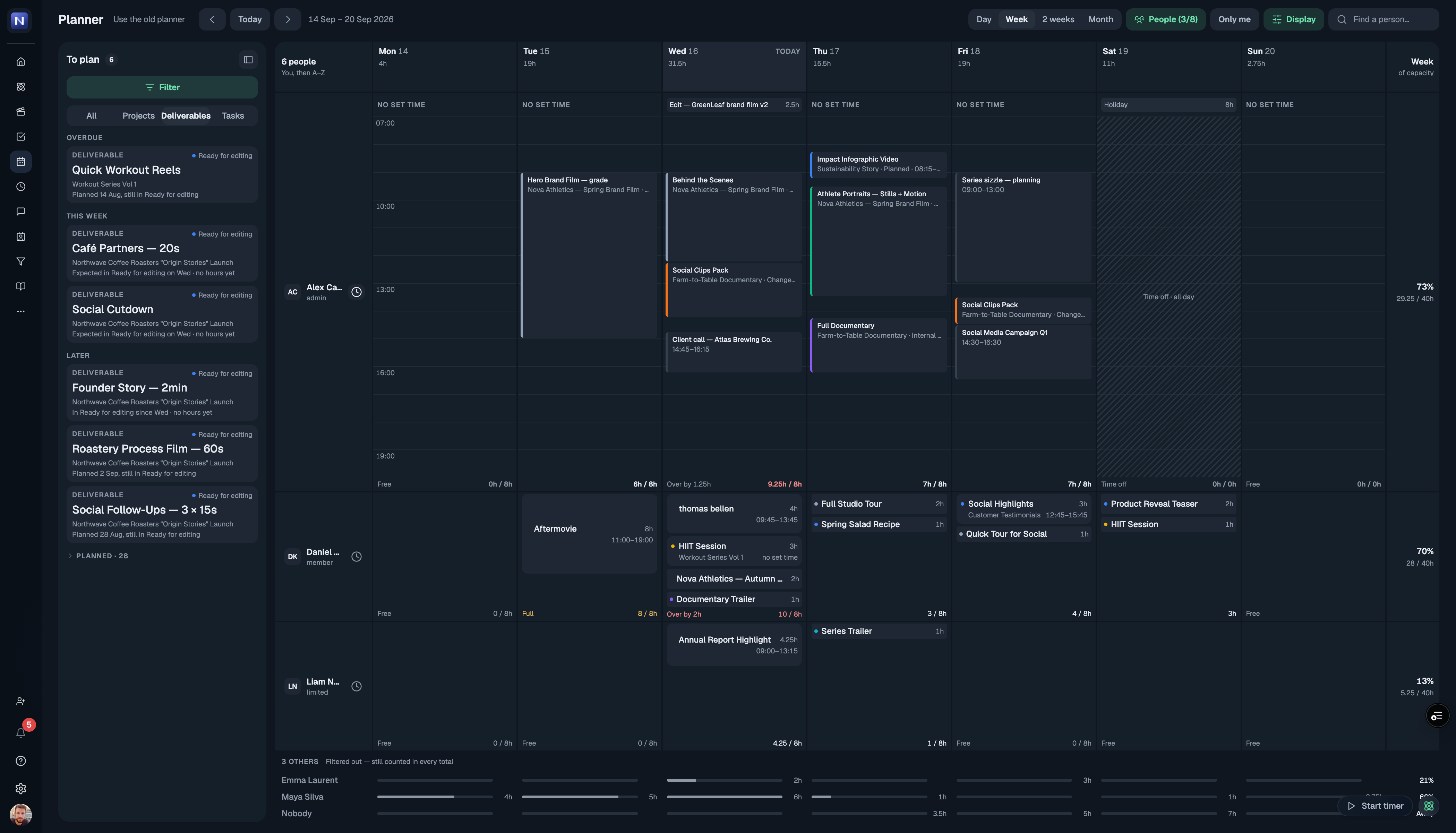
Two weeks with the new planner, and a lot of your feedback in one update. The biggest change: your Google Calendar is no longer just something you look at in the planner. You can open an event, join the meeting, move it, and turn it into a timesheet entry, all without leaving the page.

Your Google Calendar, now clickable

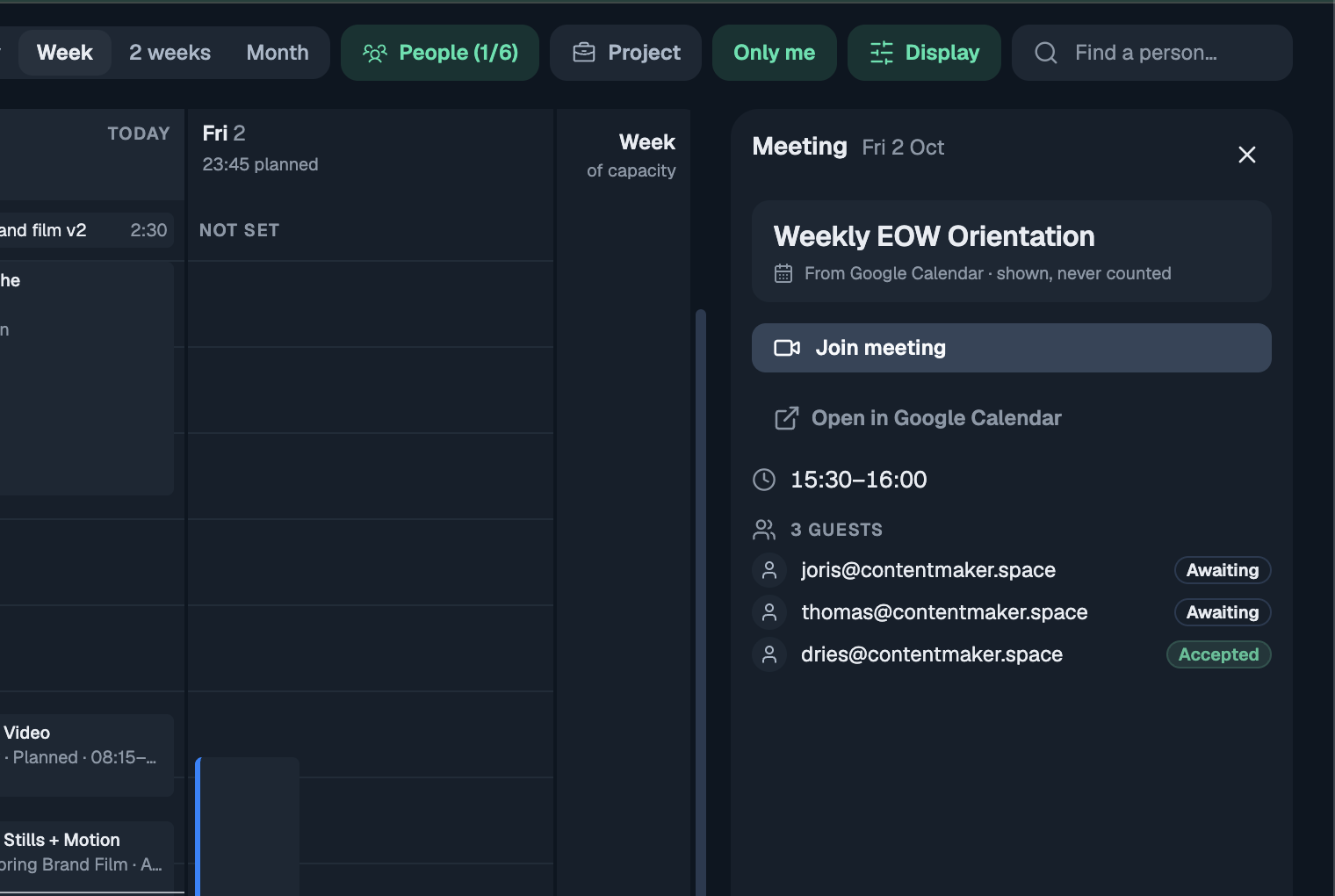
Click any Google event on the planner and it opens on the right. A meeting shows a Join button for the call, the guests and whether they're coming, and a link to open it in Google Calendar. A regular event just shows what it is and when.
Move your own events, and they move in Google too

Drag one of your own Google events to another time, pull its edge to make it longer, or change the start and end in its panel. The change is saved straight to Google Calendar, without emailing anyone, and every change can be undone. Meetings where you're a guest stay as they are, because only the organiser can move those.

Log your day to the timesheet in one go

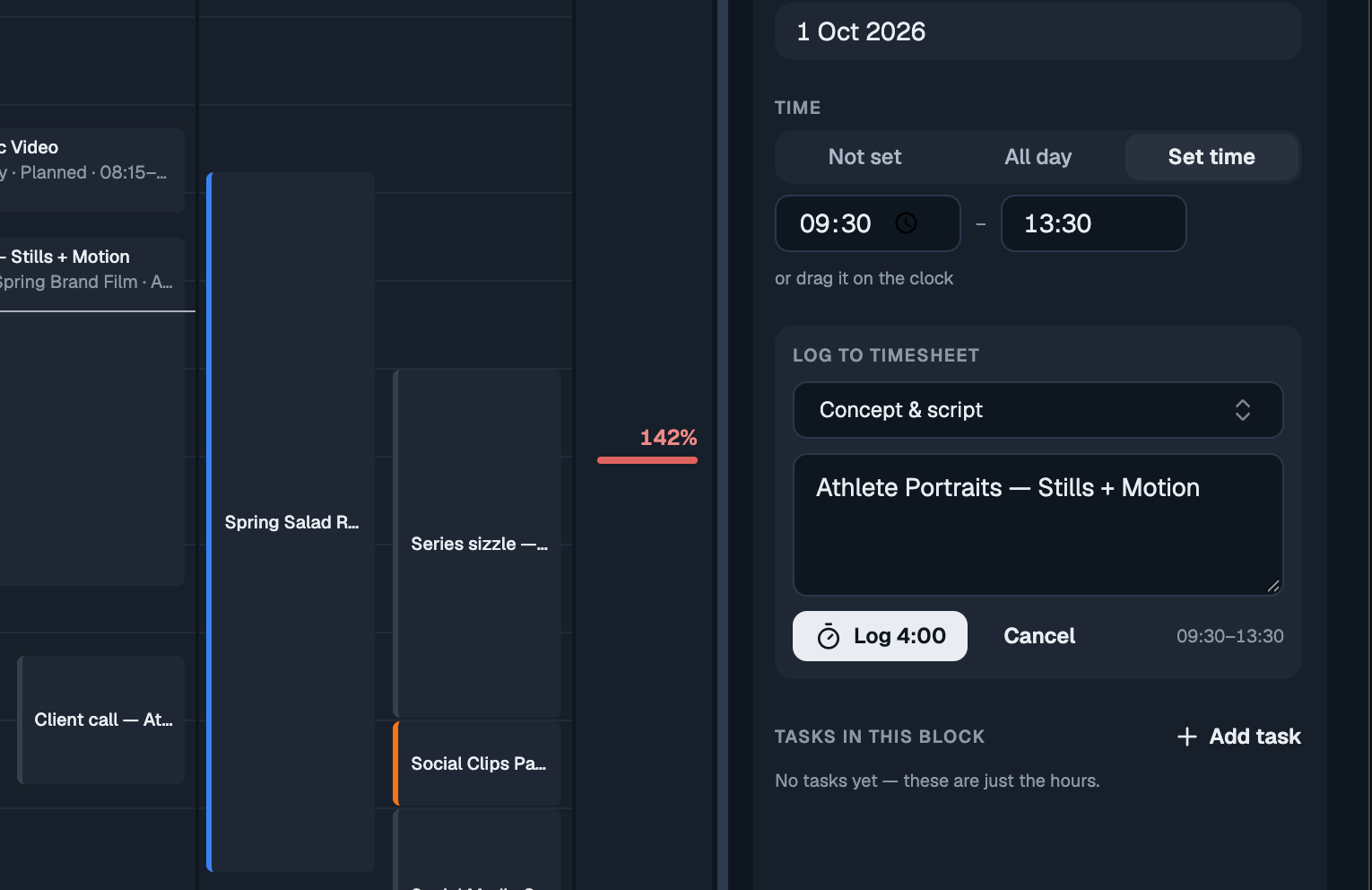
If your calendar already says what you worked on, you don't have to type it all again. Open a block or one of your Google events and choose Log to timesheet. The day, the time and the project come along; the task type is set to the one you used last time on that project, and the description is filled in for you. Check it, press Log, done. Once it's logged the panel says so, so the same hours never go in twice.
Plan a whole day when it's just you

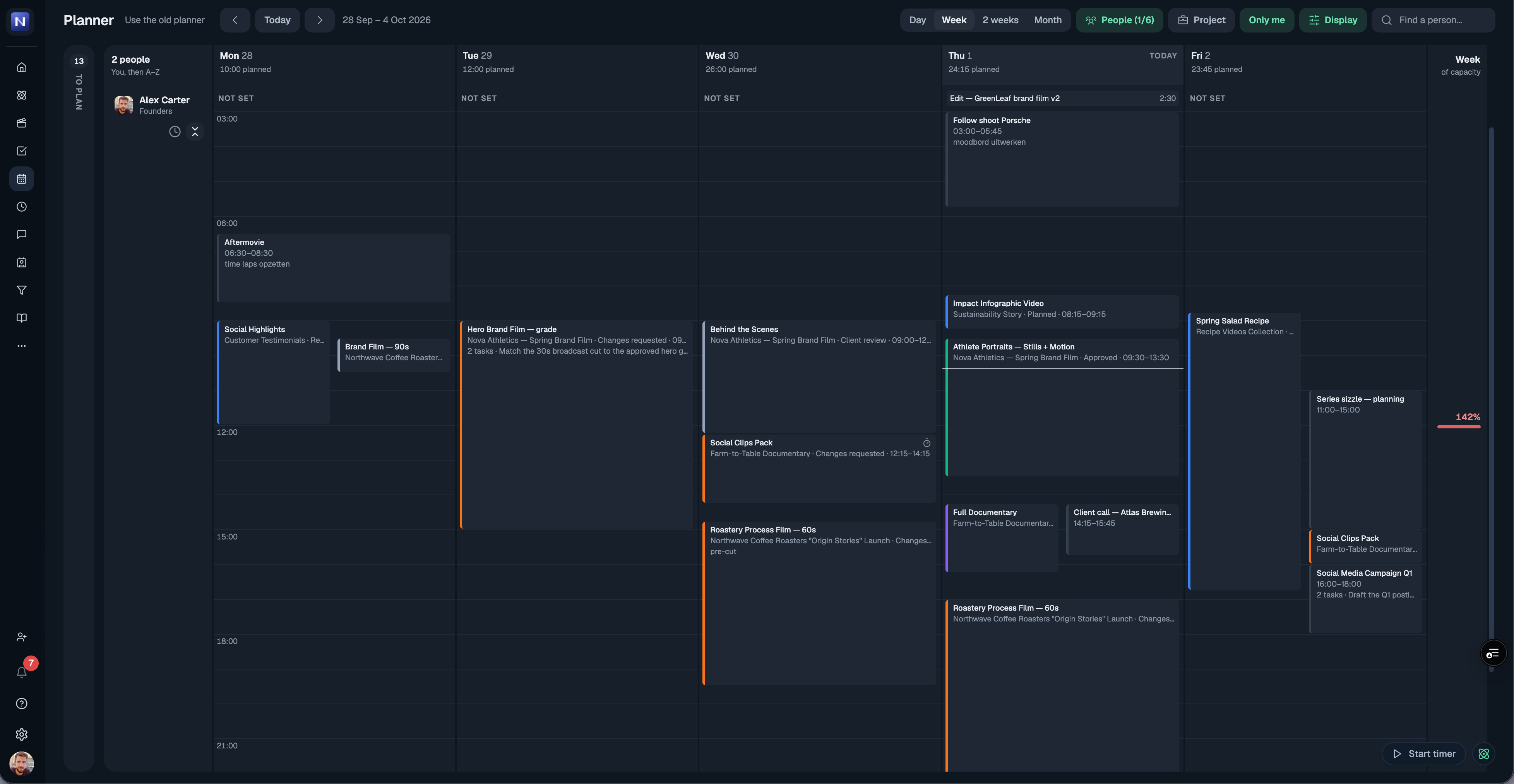
Only me now opens your week with the clock already showing, and when there's room it fills the page with the whole day. Scroll to any hour; your name and the all-day and no-set-time items stay pinned at the top while you do, the way Google Calendar does it.
Choose who shows up

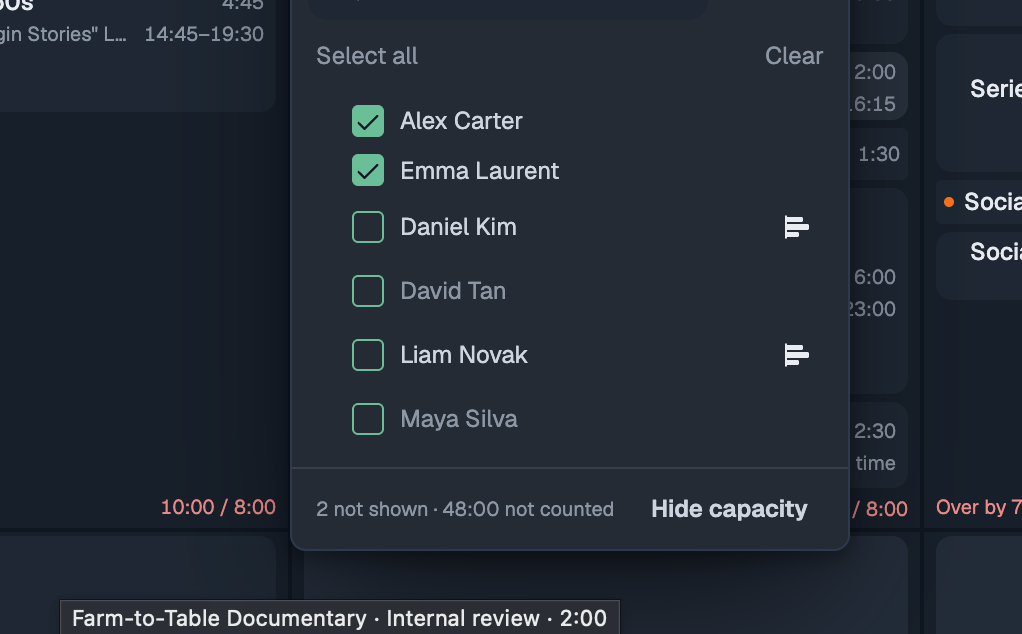
Untick someone in People and they're off the planner, out of the way. Want to keep an eye on how full their week is without their blocks? Turn on the new capacity icon next to their name and you get just one slim line for them at the bottom. Ticking a person or a whole group always brings them back, even if their capacity line was on. The search box now sits right above the list it searches.
Also new

  • Hours read as hours and minutes everywhere on the planner: 0:30, 1:15, 8:15 / 8:00. Type a length however you like (0:50, 45m, 1h 30m or 1.5) and it's saved exactly, not rounded to the quarter.

  • Hours and end time both have a dropdown now. Pick a length (including "rest of day"), or pick an end time and see how long the block becomes, like Google Calendar.

  • Blocks with a time always sit in time order, so changing one doesn't shuffle the day.

  • The Day view shows every item without a set time, and where space is tight a +2 now opens the rest instead of hiding them.

  • To plan cards show the client next to the project, and the status reads "Ready for editing since Wed". The toggle is now simply Projects · Deliverables · Tasks.

  • The clock next to a person's name opens their working hours; the new expand icon next to it opens their day as a timeline.

  • Under Display, choose how each day's total shows: as hours, as a bar, or hidden. The date row at the top stays put while you scroll.

  • The time options for a block are now Not set · All day · Set time.

  • Google events show once (some showed twice), all-day events sit with the other all-day items, and calendars you switched off no longer appear.

  • The To plan list shows placeholders while it loads instead of briefly looking empty.

Keep it coming

Almost everything above started as a message from one of you. Tell us what still gets in the way: message us on Google Chat, or use Give feedback in the ? menu. It goes straight to the people building the planner.
Write a comment...

September 30th, 2026

New

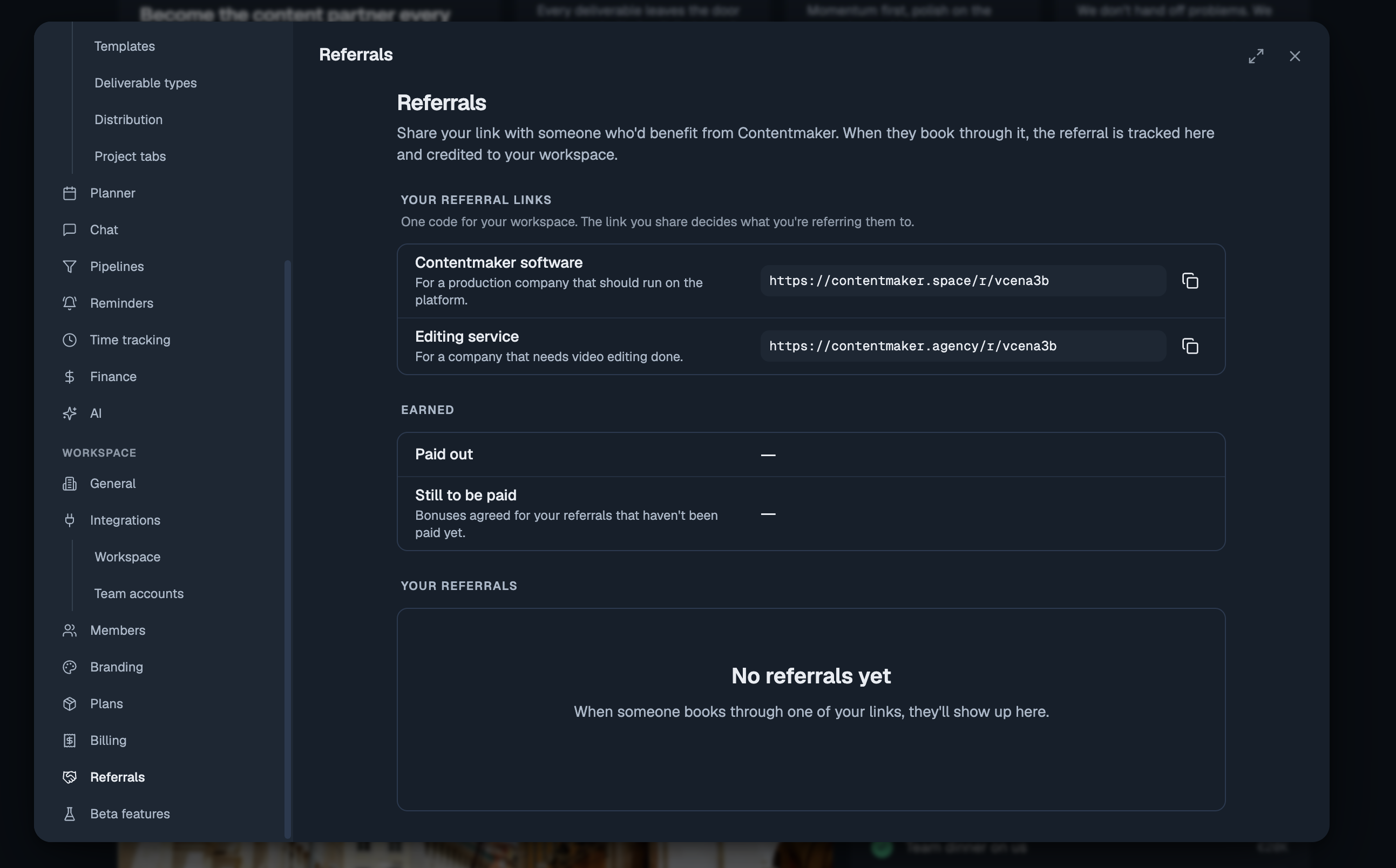
Know a production company that should be running on Contentmaker, or a brand that needs video editing done? Every workspace now has its own referral links, and a referral that becomes a customer earns you credit.

What you get

When someone you referred becomes a customer:

  • Contentmaker software: you get €80 credit on your next invoice for every seat they buy. Refer a team that buys 10 seats for a year and you get €800 off.

  • Editing service: you both get €250 in editing credits: €250 for you and €250 for the client you referred.

Where to find your links

Open Settings → Referrals. You have one code with two links, one for each thing you can refer someone to. The link you share decides which programme the referral counts for. Copy it and send it on.

Follow what happens

The same page lists everyone you've referred, with the programme, the date and where it stands: in progress, became a customer or didn't go ahead. Next to that are your bonuses, paid out and still to come.


Want the day-by-day? Every release lands inside the app under What's new. Open the ? help menu at the bottom of the sidebar. This changelog collects the highlights; that page has the lot.

Got an idea, or found something broken? Give feedback, in the same menu, opens the feedback board. Post a feature request or a bug report, and upvote what other people have asked for. The most-wanted requests are what we pick up next, and you can follow the whole Roadmap from there too.

Write a comment...

September 29th, 2026

New

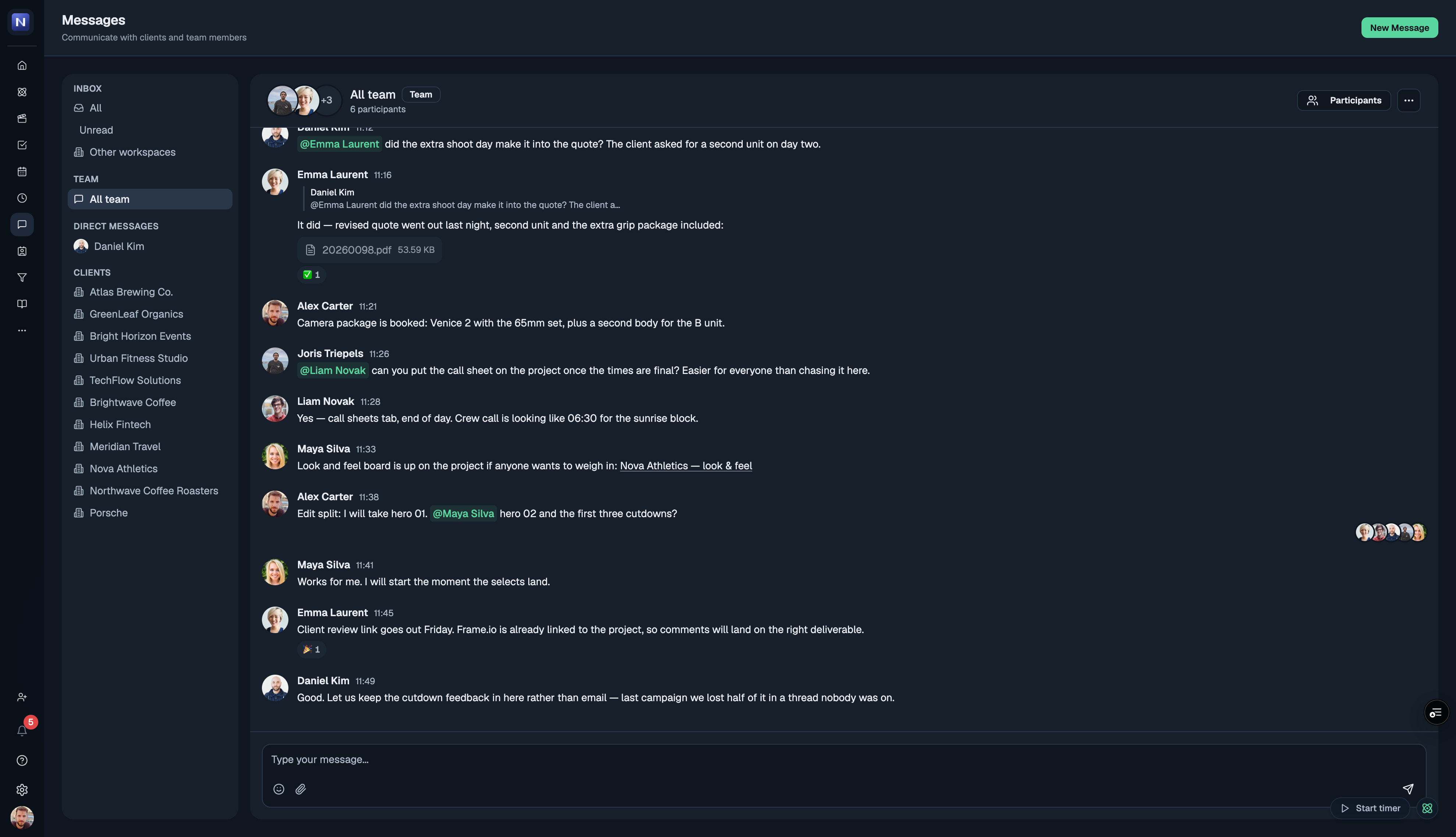
Chat is out of beta. Messages is on for every workspace now — no switch to find, nothing to enable. The reason we built it is simple: the conversation about a project almost never lives where the project does. It is in a WhatsApp thread, someone's inbox, a Google Chat room named after a client from two years ago. Then a shoot moves, and the one person who needed to know was in the other thread. Chat puts the conversation next to the work it is about, so the context comes with it.

Every project brings its own channel

Create a project and its channel comes with it. Your clients each get a place in Messages, with their projects' channels underneath — so the conversation about a film sits with that film instead of in one endless thread per client. Every project also has a Chat tab beside its deliverables, opening the same conversation from the other direction. When a project is finished the channel moves to Archived, so the list stays as short as the work you actually have on.

Your team, and the people outside it

Direct messages for one-to-one, channels for a named group of people. If you work with someone in another workspace on the platform — a client, a freelancer, an editing partner — they appear under External DMs, kept visibly separate from your own team so you always know who is in the room.

It keeps up with you

  • Unread counts on the sidebar and in the browser tab title, so you can tell from another tab that something arrived

  • Optional desktop notifications — off until you turn them on, in Settings → My account → Chat alerts

  • Mute any conversation that does not need you

  • Search across every message you can see

  • Reply to a specific message by quoting it, so a busy thread stays followable

  • See who has read what

  • Drag images straight into a message

Where to find it

The speech-bubble icon in the left rail, or the Chat tab inside any project.

What we want to build next: your clients in the conversation

Right now Chat reaches your team and anyone you work with who is on the platform themselves. A client who only has a share link cannot answer you yet — and that is the piece we want next: a portal your client signs into, an email when you send them something, and their reply landing back in the thread on the project it belongs to. No more forwarding feedback from an inbox into the place the work lives.

Tell us what you think

It is early for this one and we want to know how it holds up against whatever you are using today — what is missing, what would have to be true for your team to move a real conversation into it. Message us or post on the feedback board.


Thanks, Joris

Write a comment...

September 17th, 2026

Improved

Planning now opens on the rebuilt planner. Same data, same blocks — but built for the part that was hardest before: seeing a whole team's week at once, and planning complex work across it.

That is the real change. Most calendar tools are built for one person's day and start to fall apart the moment you put a team in them — everyone gets squeezed into rows until nothing is readable, and the one thing you opened it for, who is free and who is drowning, is the thing you cannot see. For a production company that is the whole job. So the new planner is designed for it from the start: every person's week legible at a glance, capacity visible while you plan rather than after, and the detail still there when you go looking for it.

Open anyone's week without leaving the team view

Every person is one row. Click the clock beside their name and that row unfolds into their actual week — real hours, real blocks — while the rest of the team stays exactly where it was. Click it again and it folds back.

Plan several things at once

Pick as many deliverables as you need from the To plan list and drop them onto a day together. They all land, each as its own block, on the person you dropped them on.

Two ways to read a day

Some people think in people, some think in hours. The Day view does both: people across the top with the hours running sideways, or the clock down the side with people as columns. One toggle, same day.

Also new

  • A clearer grid that stays readable with bigger teams on it

  • Filter the To plan list by status, client and company, so you can ask "what is still unplanned for this client?" and get an answer

  • Drag a block to move it, pull its edge to change the hours

  • Capacity on every row and every day, so an overbooked week says so before you find out the hard way

Prefer the old one for now?

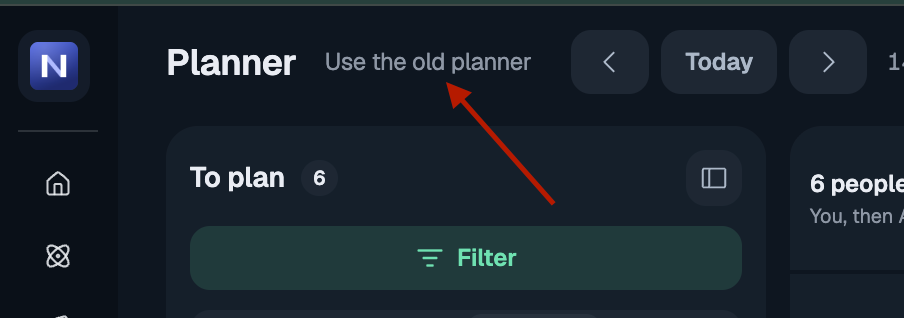
Use the old planner sits next to the page title and switches you straight back. The old planner retires on 23 September.

Tell us what you think

This is a big change and we would genuinely like to hear how it lands — what works, what is missing, what you would do differently. Message us on Google Chat, we are one message away. If you do switch back to the old planner, the box on that switch is the fastest way to tell us why. Both go straight to the people building it, and it is what decides what we fix first.

Write a comment...

June 2nd, 2026

Improved

A faster, clearer way to move around the platform 🧭

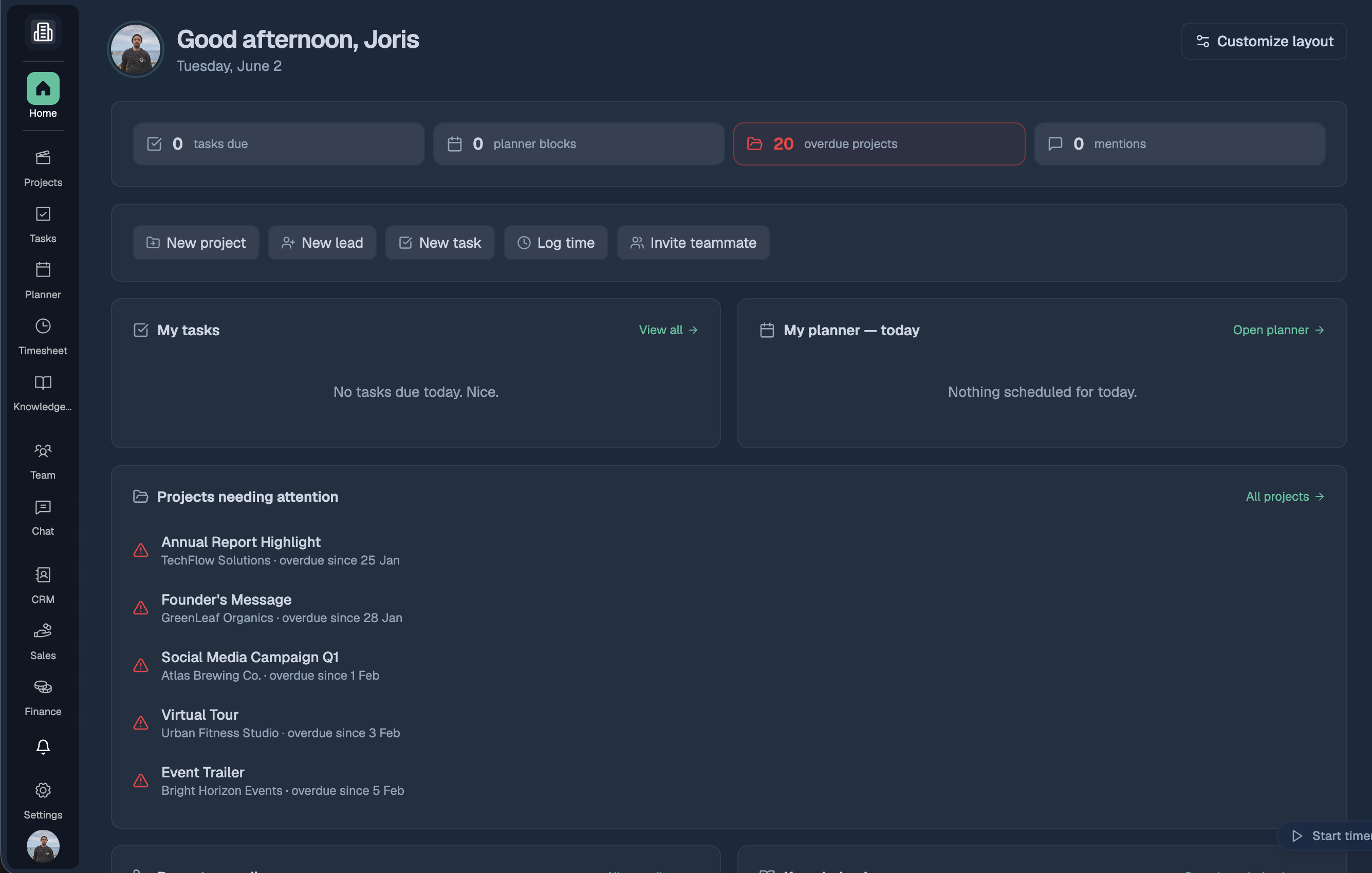
We've rebuilt the main navigation from the ground up. The old single sidebar is now a slim icon rail down the left edge — every workspace is one click away, with a clear label under each icon so you always know what's what.

What's new

  • Grouped workspaces. Icons are organised into logical clusters so related tools sit together:

    • Work — Projects, Tasks, Planner, Timesheet, Knowledge Base

    • Team — Team & Chat

    • Business — CRM, Sales, Finance

    • Community

  • Everything has a home. Tasks, Planner, Timesheet and your Team page are now top-level destinations instead of being buried in submenus.

  • Company switcher up top. Switch between companies from the top of the rail — always in the same spot, on every page.

  • A cleaner two-panel layout. The rail pairs with a floating side panel that shows the right options for wherever you are. On Settings, Messages and your dashboard, the panel steps aside so your content gets the full width.

  • Settings is now its own page. No more modal — Settings opens as a proper page with its own navigation, so you can deep-link and bookmark any section.

  • Adapts to your screen. On shorter windows the rail tucks extra items into a tidy More menu instead of cutting them off.

Write a comment...

June 1st, 2026

New

Your voice now shapes what we build 🛠️

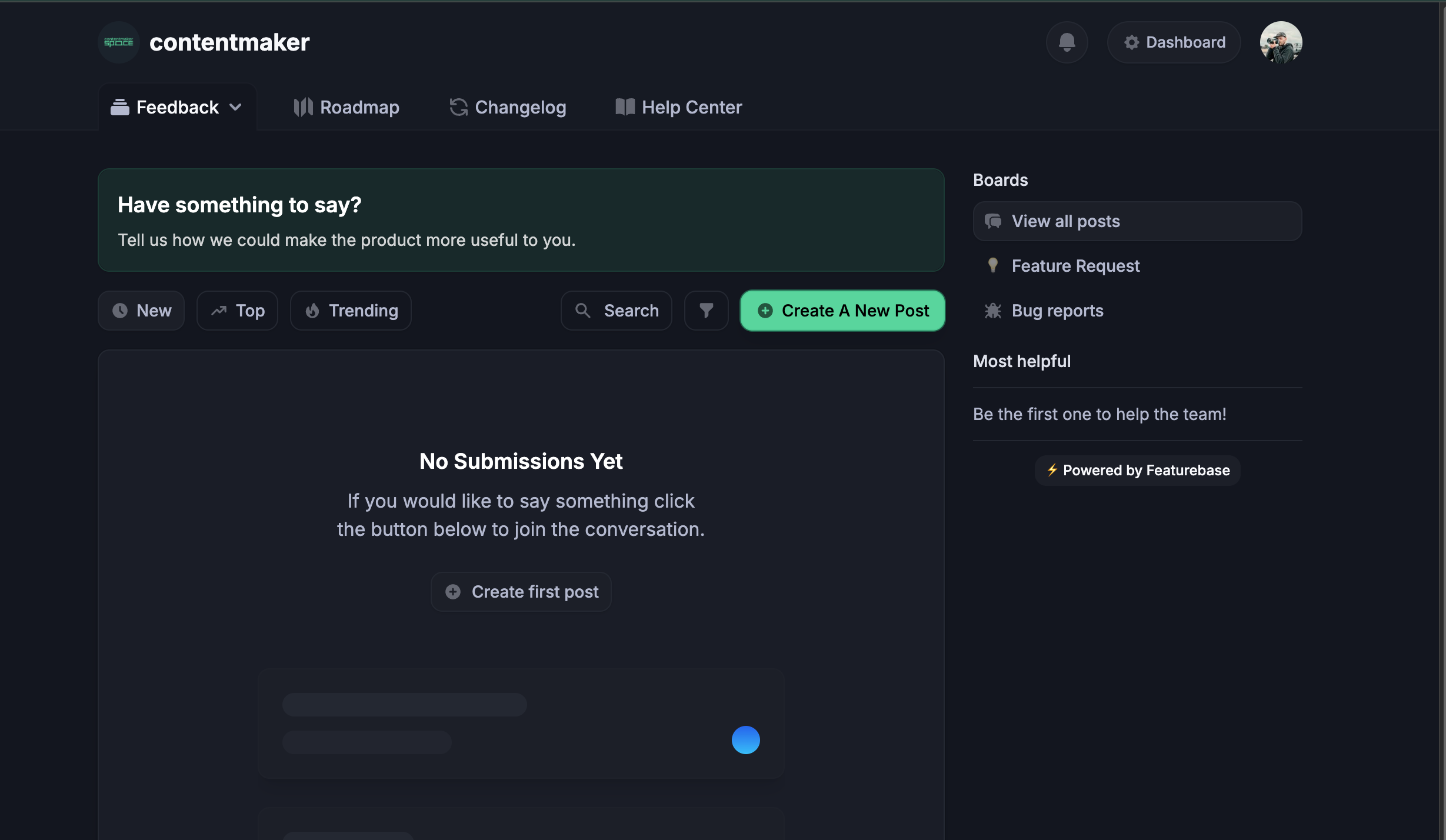
We've added a dedicated space where you can tell us what to build next, follow what's coming, and keep up with everything we ship. It's integrated right into your dashboard — no separate account or extra logins.

What you can do here

  • 💡 Request features — Got an idea? Post it. The more detail, the better.

  • 🐞 Report bugs — Something not working? Let us know so we can fix it fast.

  • 👍 Upvote & comment — Back the ideas you care about. The most-wanted requests rise to the top and help us prioritise.

  • 🗺️ Follow the Roadmap — See what's planned, in progress, and recently shipped.

  • 📣 Read the Changelog — Every update we release lands here (including this one).

  • 📖 Browse the Help Center — Guides and answers to common questions.

How to open it

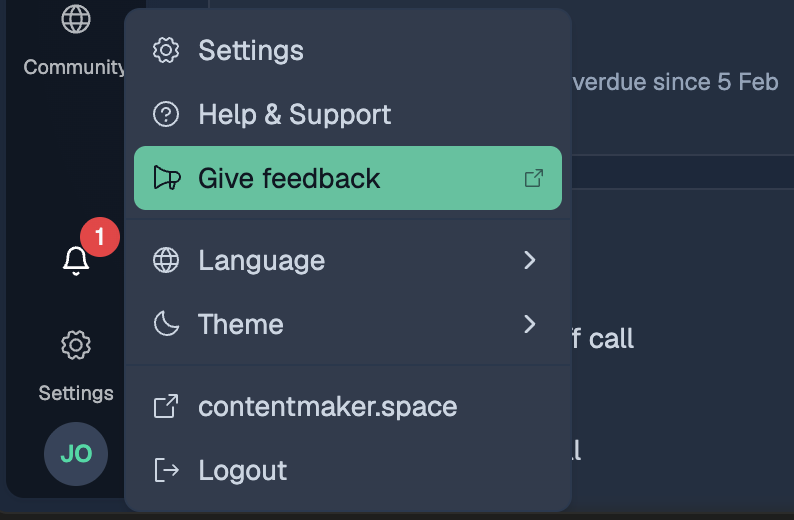
You'll find it under "Give feedback" in your account menu in the dashboard. One click opens the board — submit a feature request or bug report in seconds.

Go to the feedback dashboard from your account menu
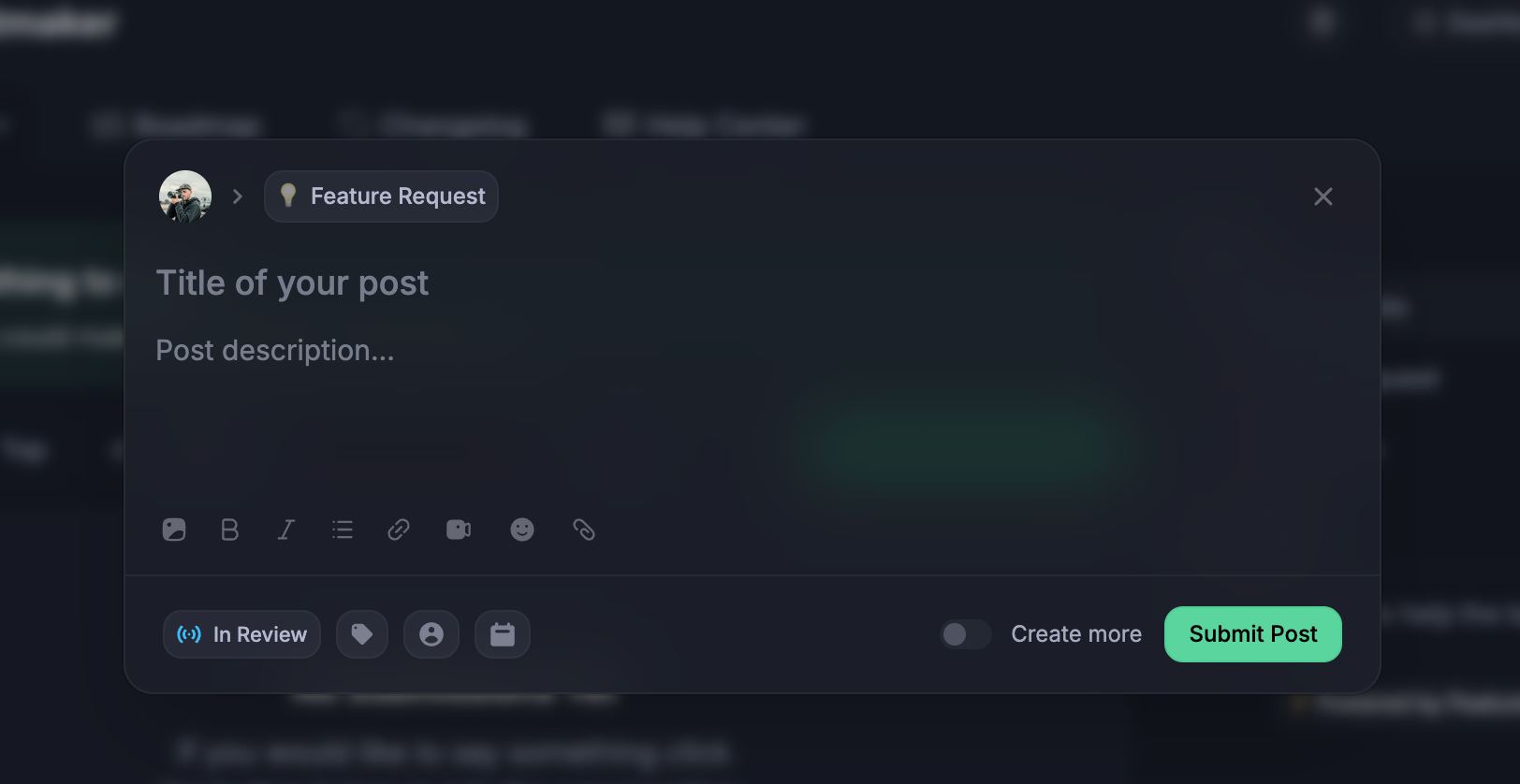
Add new feature requests or bug reports

Why we built this

We'd rather build what you actually need than guess. This makes it easy for you to steer the product. Every post is read by the team, and you'll get notified when something you requested moves forward or ships.

Got something to say? Head to the Feature Request board and tell us. We're listening! 💬

Write a comment...